## Breadcrumb
1. [Home](/index%2Ephp/)
2. [Student Services](/index%2Ephp/student-services)
3. [Student Accounts](/index%2Ephp/student-services/student-accounts)
4. [How to Pay Tuition](/index%2Ephp/markdownify/node/3069)

Explore
- [Overview](/index%2Ephp/student-services/student-accounts)
- [Payment Plans](/index%2Ephp/student-services/student-accounts/payment-plans)
- [Refunds](/index%2Ephp/student-services/student-accounts/refunds)
- [Tuition Fees](/index%2Ephp/student-services/student-accounts/tuition-fees)
- [How to Pay Tuition](/index%2Ephp/student-services/student-accounts/how-pay-tuition)
- [Laptop Program Fees](/index%2Ephp/student-services/student-accounts/laptop-program-fees)
- [Other Fees](/index%2Ephp/student-services/student-accounts/other-fees)
# How to Pay Tuition & Fees
Explore
- [Overview](/index%2Ephp/student-services/student-accounts)
- [Payment Plans](/index%2Ephp/student-services/student-accounts/payment-plans)
- [Refunds](/index%2Ephp/student-services/student-accounts/refunds)
- [Tuition Fees](/index%2Ephp/student-services/student-accounts/tuition-fees)
- [How to Pay Tuition](/index%2Ephp/student-services/student-accounts/how-pay-tuition)
- [Laptop Program Fees](/index%2Ephp/student-services/student-accounts/laptop-program-fees)
- [Other Fees](/index%2Ephp/student-services/student-accounts/other-fees)
rgb(255,255,255)
### Overview and current dates and deadlines
Full payment is due by the term's deadline. Students should monitor their finance account and access invoices on the myOCADU portal. All finance communications are sent to OCAD U email accounts. Non-receipt of an OCAD U email notice does not exempt you from meeting your financial obligations.
**Non-receipt of an OCAD U email notice does not exempt you from meeting your financial obligations.**
#### **Paying for course enrolments after the tuition deadline**
Tuition fees for course enrolments made after the tuition and fee deadline and before registration closes for the term must be paid immediately. Students already enrolled in payment plans who enrol in additional courses will see their balance owing adjusted and distributed across their remaining instalments.
[**View Payment due dates**](https://www.ocadu.ca/student-services/office-registrar/dates-and-deadlines?field_deadline_type_target_id=882)
### Late payment of fees
Pay your fees by the payment deadline to avoid a financial hold (account restriction that prevents you from making registration changes, accessing official documents or graduating) and interest penalties.
Restrictions are lifted once all outstanding fees are paid in full and reflected on your student finance account, including interest penalties by the following business day. Ensure payment processing times are taken into consideration to avoid any delays to registration and/or other deadlines. For details on late payment interest, refer to the support article, [What if I have a late tuition payment](https://ocadu.topdesk.net/tas/public/ssp/content/detail/knowledgeitem?unid=698dd27a8d4a41efb092bc585c6bd033).

rgb(0,0,0)
### Accepted payment options
You can pay your tuition and fees in a variety of ways. Please review the full list of payment options and instructions below.
### PayMyTuition
OCAD U has partnered with PayMyTuition for domestic and international tuition payment options. Using PayMyTuition, you can make fast, simple and cost-effective tuition and fee payments.
rgb(0,0,0)
## Sign up for a payment plan
Manage your education costs with convenient, manageable and interest-free payments spread out over the term by [signing up for a payment plan](https://www.ocadu.ca/student-services/student-accounts/payment-plans).
[ Sign Up For A Payment Plan
.arrow-link-long {
fill: #000;
}
](https://www.ocadu.ca/student-services/student-accounts/payment-plans)rgba(160,20,236,1)
rgba(0,0,0,1)
rgb(0,0,0)
### Payments from within Canada
##### (Domestic)
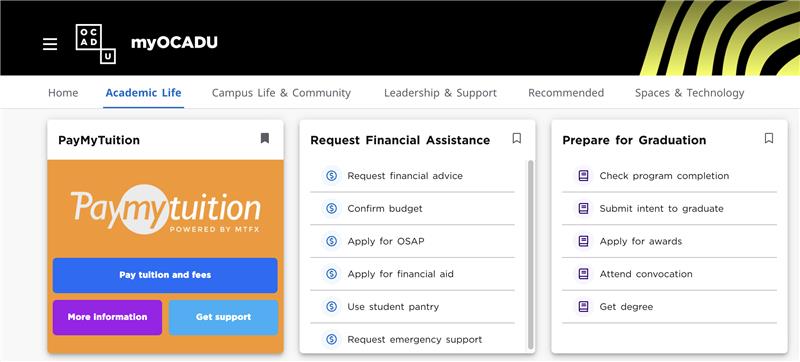
Using [**myOCADU**](https://my.ocadu.ca/), locate the PayMyTuition card by navigating to the Academic Life tab, or by searching for it, to pay your tuition and fees from any Canadian bank. Please refer to the table below for a list of payment options and when you can expect to see your payment reflected in your **PayMyTuition Payment Center**:
| Payment Method | Estimated time for payment confirmation |
|---|---|
| Credit card (Visa, MasterCard, American Express)\* | Immediately |
| Visa debit and MasterCard debit\* | Immediately |
| Pre-authorized debit (PAD) from your bank account\*\* | 1-3 business days |
| Online bill payment | 2-4 business days |
| Interac e-transfers | 1 business day |
*\*A 2.5% non-refundable convenience fee will be added to all credit card (Visa, Mastercard, American Express), Visa debit or MasterCard debit payments. Credit card convenience fees will not be refunded, unless there has been a web payment error such as a duplicate payment.*
*\*\* A $30 fee for each NSF (non-sufficient funds) or returned payment will be applied to the student’s finance account. Student will no longer be able to use Pre-authorized debit (PAD) and must select an alternative payment method for any future tuition fee payments.*
*The removal of a financial hold (account restriction that prevents you from making registration changes, accessing official documents or graduating) resulting from late payment will take up to 1 business day to process.*
### How to pay from within Canada
### Step 1 - Log in to myOCADU
[Log in to myOCADU](https://my.ocadu.ca)
- You can find the PayMyTuition card by navigating to the Academic Life tab or searching for it.
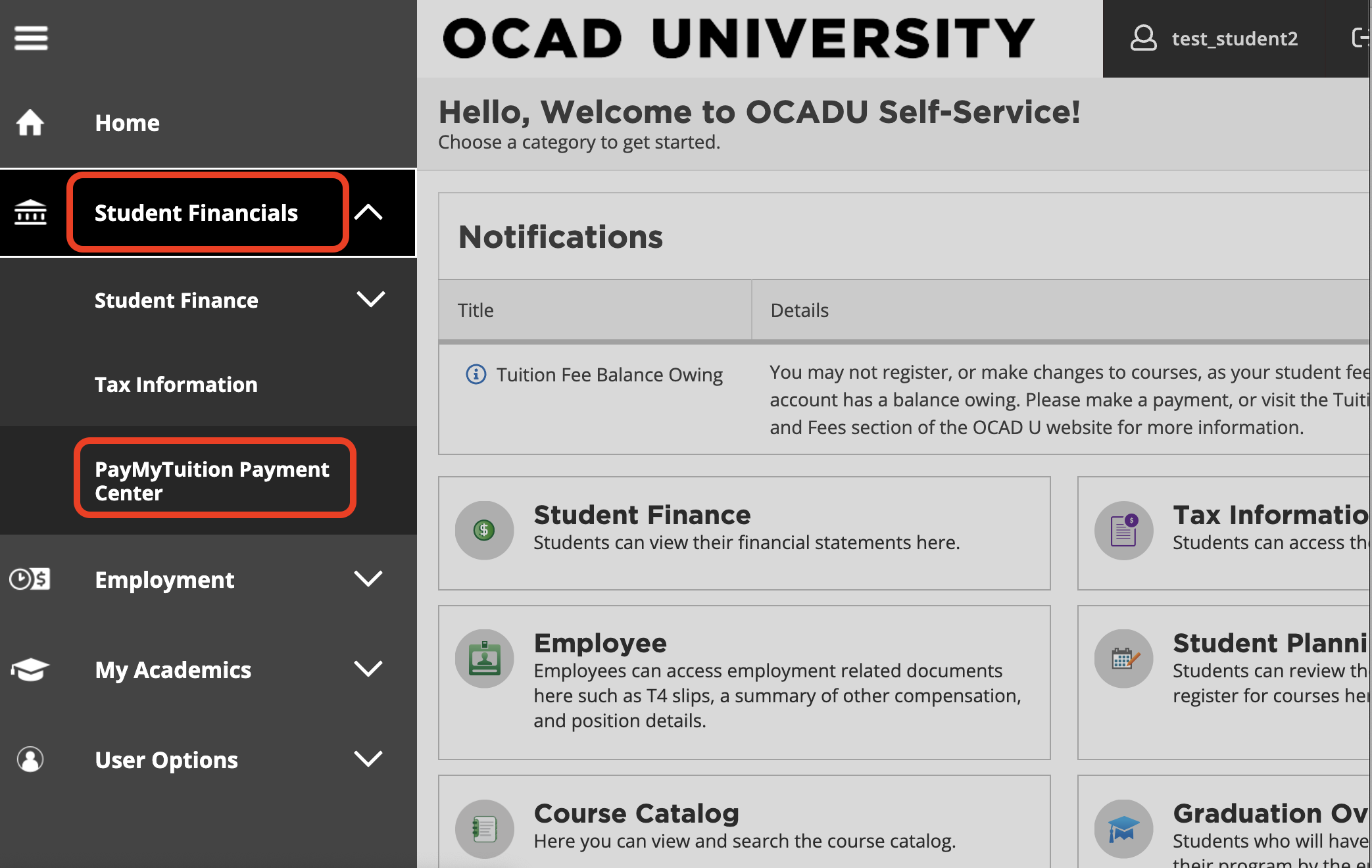
- You can also access PayMyTuition by going the Tools card > Self-Service > Student Financials in the side menu to access the PayMyTuition Payment Center
### Step 2 - Choose Payment Type
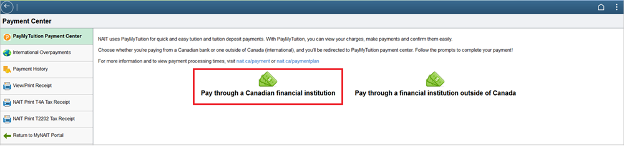
To pay through a Canadian bank, select **Pay through a Canadian financial institution** button to be redirected to your secure PayMyTuition payment portal.
### Step 3 - Make Payment
After being redirected to your MyPayTuition payment portal, select **Make a payment** to start the process.
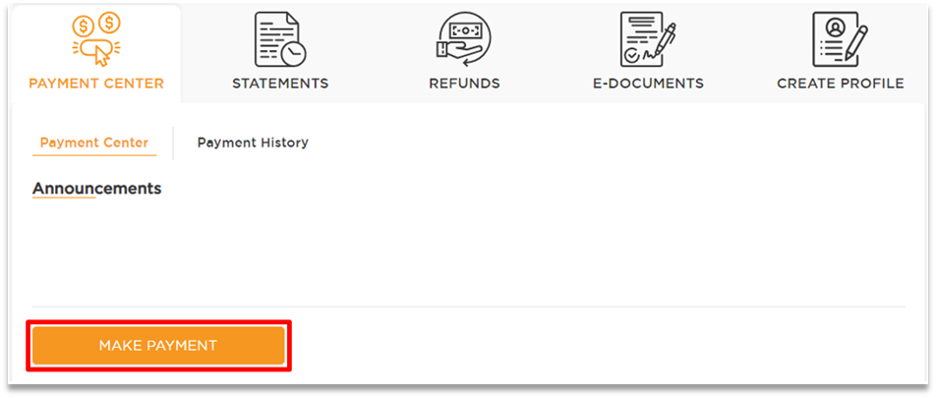
Review the payment options and select your preferred payment method. Follow the instructions to process your payment.
Payments will be reflected on your student account within 24 to 72 hours after you have initiated your payment.
**Need help?** [**Download PayMyTuition within Canada step-by-step instructions (PDF 164 KB)** ](https://www.ocadu.ca/sites/default/files/paymytuition/Domestic%20Payment%20Instruction.pdf)
### Payment Tips
- Be aware of the processing times for each payment method. If you need to pay your fees immediately, please select one of the immediate payment options.
- You can receive email confirmations or SMS alerts from PayMyTuition when your payment has been processed. If there is further action to be made on your payment, you will also receive notifications noting next steps with PayMyTuition.
- You may want to save a copy of your receipt at the time of payment. OCAD U cannot access or print this receipt for you.
### Payments from outside of Canada
##### (International)
If you are an international student, you can pay your tuition and fees from any bank, in any country, in any currency at a better rate than bank exchange rates. International payment options include:
| Payment method | Estimated time for payment confirmation |
|---|---|
| Bank transfers | 2-10 business days\*\* |
| Debit and Credit cards in your home currency | 2-3 business days |
| eWallet payments | 2-3 business days |
| Plus, other local options (if available) | 2-3 business days |
*\*\*Anticipated timelines vary depending on the originating country.*
*The removal of a financial hold (account restriction that prevents you from making registration changes, accessing official documents or graduating) resulting from late payment will take up to 1 business day to process.*
### How to make an international payment
### Step 1 - Log in to myOCADU
[Log in to myOCADU](https://my.ocadu.ca)
- You can find the PayMyTuition card by navigating to the Academic Life tab or searching for it.

- You can also access PayMyTuition by going the Tools card > Self-Service > Student Financials in the side menu to access the PayMyTuition Payment Center

### Step 2 - Choose Payment Type
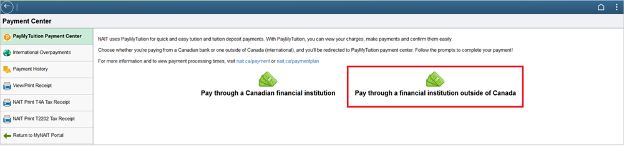
To pay through bank outside of Canada, select Pay through a financial institution outside of Canada button to be redirected to your secure PayMyTuition payment portal.
### Step 3 - Make Payment
After being redirected to your MyPayTuition payment portal, select **Make a payment** to start the payment process.
Review the payment options and select your preferred payment method. Follow the instructions to process your payment.
Payments can take up to **5 business days** to be applied in your student account, depending on the payment option selected.
### Step-by-step payment instructions (translated PDFs)
To support you with using PayMyTuition, you can download these helpful step-by-step PDF instructions, translated into 16 languages:
- [English](https://www.ocadu.ca/sites/default/files/paymytuition/Payment%20Step%20English.pdf)
- [French](https://www.ocadu.ca/sites/default/files/paymytuition/Payment%20Step%20French.pdf)
- [Spanish](https://www.ocadu.ca/sites/default/files/paymytuition/Payment%20Step%20Spanish.pdf)
- [Portuguese](https://www.ocadu.ca/sites/default/files/paymytuition/Payment%20Step%20Portuguese.pdf)
- [Vietnamese](https://www.ocadu.ca/sites/default/files/paymytuition/Payment%20Step%20Vietnamese.pdf)
- [Japanese](https://www.ocadu.ca/sites/default/files/paymytuition/Payment%20Step%20Japanese.pdf)
- [Korean](https://www.ocadu.ca/sites/default/files/paymytuition/Payment%20Step%20Korean.pdf)
- [Simplified Chinese](https://www.ocadu.ca/sites/default/files/paymytuition/Payment%20Step%20Simplified%20Chinese.pdf)
- [Traditional Chinese](https://www.ocadu.ca/sites/default/files/paymytuition/Payment%20Step%20Traditional%20Chinese.pdf)
- [Arabic](https://www.ocadu.ca/sites/default/files/paymytuition/Payment%20Step%20Arabic.pdf)
- [Punjabi](https://www.ocadu.ca/sites/default/files/paymytuition/Payment%20Step%20Punjabi.pdf)
- [Hindi](https://www.ocadu.ca/sites/default/files/paymytuition/Payment%20Step%20Hindi.pdf)
- [Farsi](https://www.ocadu.ca/sites/default/files/paymytuition/Payment%20Step%20Farsi.pdf)
- [Turkish](https://www.ocadu.ca/sites/default/files/paymytuition/Payment%20Step%20Turkish.pdf)
- [German](https://www.ocadu.ca/sites/default/files/paymytuition/Payment%20Step%20German.pdf)
- [Bernese German](https://www.ocadu.ca/sites/default/files/paymytuition/Payment%20Step%20Bernese%20German.pdf)
- [Swedish](https://www.ocadu.ca/sites/default/files/paymytuition/Payment%20Step%20Swedish.pdf)
- [Dutch](https://www.ocadu.ca/sites/default/files/paymytuition/Payment%20Step%20Dutch.pdf)
rgb(0,0,0)
### Need support with PayMyTuition?
Connect with PayMyTuition directly by calling 1.855.663.6839 (toll-free) or through one of their [local country contact numbers](https://www.paymytuition.com/contact-us). You can also reach PayMyTuition Support at [support@paymytuition.com ](mailto:support@paymytuition.com)or through their [support page](https://www.paymytuition.com/company/contact/).
No matter what time zone you are in, you will have a dedicated customer support team available to you through live chat, email, and phone to answer any of your questions and help you make your payment.
Terms of Use:
Please note that OCAD U has partnered with a third-party service provider, PayMyTuition, to process tuition and fee payments. As such, OCAD U does not own or control the operations of PayMyTuition. Students who use PayMyTuition will be subject to PayMyTuition’s [terms and conditions](https://www.paymytuition.com/terms-of-use), including any applicable service fees that may be charged.
### Additional information about PayMyTuition
[Frequently Asked Questions about PayMyTuition](https://www.ocadu.ca/student-services/student-accounts/payment-plans#faq)
[PayMyTuition’s rate guarantee](https://www.paymytuition.com/server/images/PMT_Rate_Guarantee.pdf)
rgb(0,0,0)
### Alternative tuition payment options
### Sponsorship
Student sponsorships can use the standard payment methods or request a tuition payment deferment by emailing a sponsorship letter to before the term payment deadline. Sponsors will be invoiced each term, after the term registration deadline. Sponsors are encouraged to use electronic funds transfer (EFT) for faster processing.
Students must pay any fees not covered by sponsorship by the term payment deadline to avoid interest charges. Non-payment by the sponsor does not exempt students from their financial obligation. Students should monitor their fees account to ensure payment is made.
### In-person payments
Students are encouraged to use an electronic payment method where possible and during non office hours. In-person payments is currently unavailable.
### Payment by cheque
**Students are encouraged to use an electronic payment method where possible**. Couriered cheques may take longer to arrive and post to your student finance account.
Cheque payment can be mailed or couriered to:
**OCAD University**
**Attention: Student Accounts**
**100 McCaul St.**
**Toronto, ON M5T 1W1**
Please include your full name and student ID number with all correspondence. Post-dated cheques are not accepted. There is a charge of $30 for each NSF (non-sufficient funds) or returned cheque.
### External Scholarship
External scholarships and/or bursaries administered by a third party can be couriered to the University. Include the student’s name and 7-digit OCADU student ID number.
OCAD University,
Student Accounts, Finance Department
100 McCaul Street
Toronto, ON
M5T 1W1
For electronic payments, contact [Student Accounts](mailto:studentaccounts@ocadu.ca "mailto:studentaccounts@ocadu.ca") for further information.
rgb(0,0,0)
### Admissions Confirmation Deposit
The Admissions Confirmation Deposit may be paid using one of the following options using our PayMyTuition platform:
- [International payments](https://external-form.paymytuition.com/external-system/institute?formId=I0kqo7iD48oOEccbjtRM0McQEzNTFc_Jh3LdUyjvGi1Ez66Moa3_g5v787Bqe36Y&externalId=kWa%2B80VF9LOWDKQsHgfKXA%3D%3D "https://external-form.paymytuition.com/external-system/institute?formid=i0kqo7id48ooeccbjtrm0mcqezntfc_jh3lduyjvgi1ez66moa3_g5v787bqe36y&externalid=kwa%2b80vf9lowdkqshgfkxa%3d%3d")
- [Canadian payments](https://external-form.paymytuition.com/external-system/institute?formId=35Uy4lsdqYUk3GRVuIj6Pa_NUYnTnqj_3gxUYskAJTiXgZSpw3VUoox_bNb7wP79&externalId=kWa%2B80VF9LOWDKQsHgfKXA%3D%3D "https://external-form.paymytuition.com/external-system/institute?formid=35uy4lsdqyuk3grvuij6pa_nuyntnqj_3gxuyskajtixgzspw3vuoox_bnb7wp79&externalid=kwa%2b80vf9lowdkqshgfkxa%3d%3d")
Admission deposits are non-refundable. To learn more about the admission deposits, please visit the Guide to Admissions pages for [undergraduate students](https://admissions.ocadu.ca/apply/guide-admissions "https://admissions.ocadu.ca/apply/guide-admissions") and [graduate students](https://gradadmissions.ocadu.ca/apply/application-process "https://gradadmissions.ocadu.ca/apply/application-process").